Making flashcards by hand from a textbook chapter is a decent study activity and a terrible use of an evening. The reading you have to do to write the cards is the valuable part; the typing is not. This walkthrough skips the typing.
Step 1: upload the PDF
Open the generate page and drop the file in. You can also paste text directly or hand it a link, but a PDF chapter is the most common case and the one this guide follows. There is a free plan and it does not ask for a card, so you can test this on a real chapter before deciding anything.
Which PDFs work best
- Under about 30 pages. A single chapter or lecture handout gives a focused deck. Feed it a 400-page textbook and the cards spread too thin to be useful for any one exam. If you have a whole book, split it and run a chapter at a time.
- Text-based or scanned, both fine. Scanned pages and photographed handouts are run through OCR, so a photocopy from a library book still works. Clean scans read better than a phone photo taken at an angle.
- Up to 10MB. Above that, export a smaller version or split the file. Image-heavy scans hit the limit faster than plain text.
Step 2: read the visual before you touch the deck
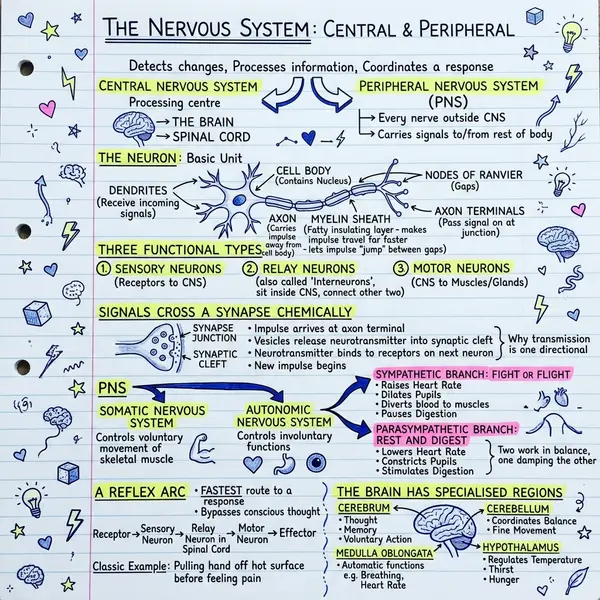
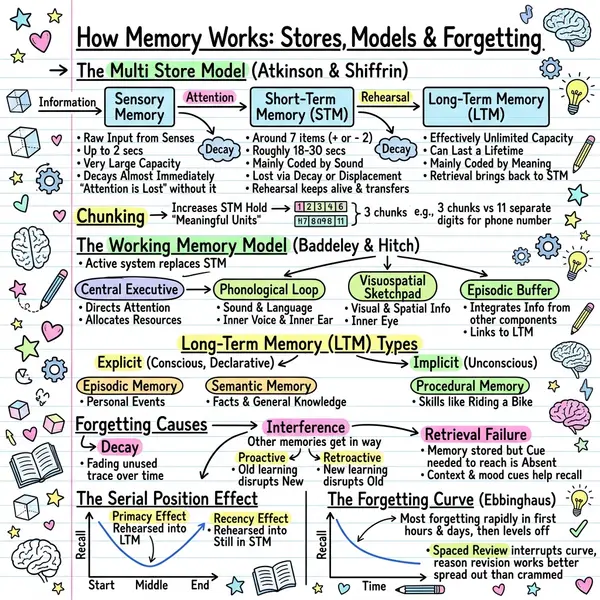
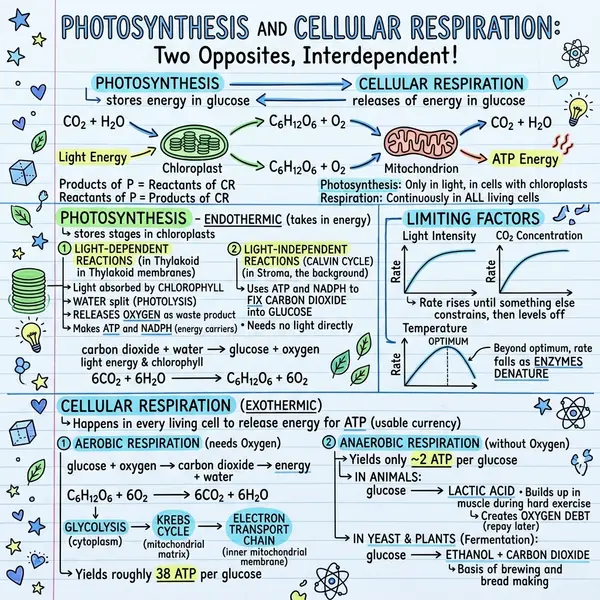
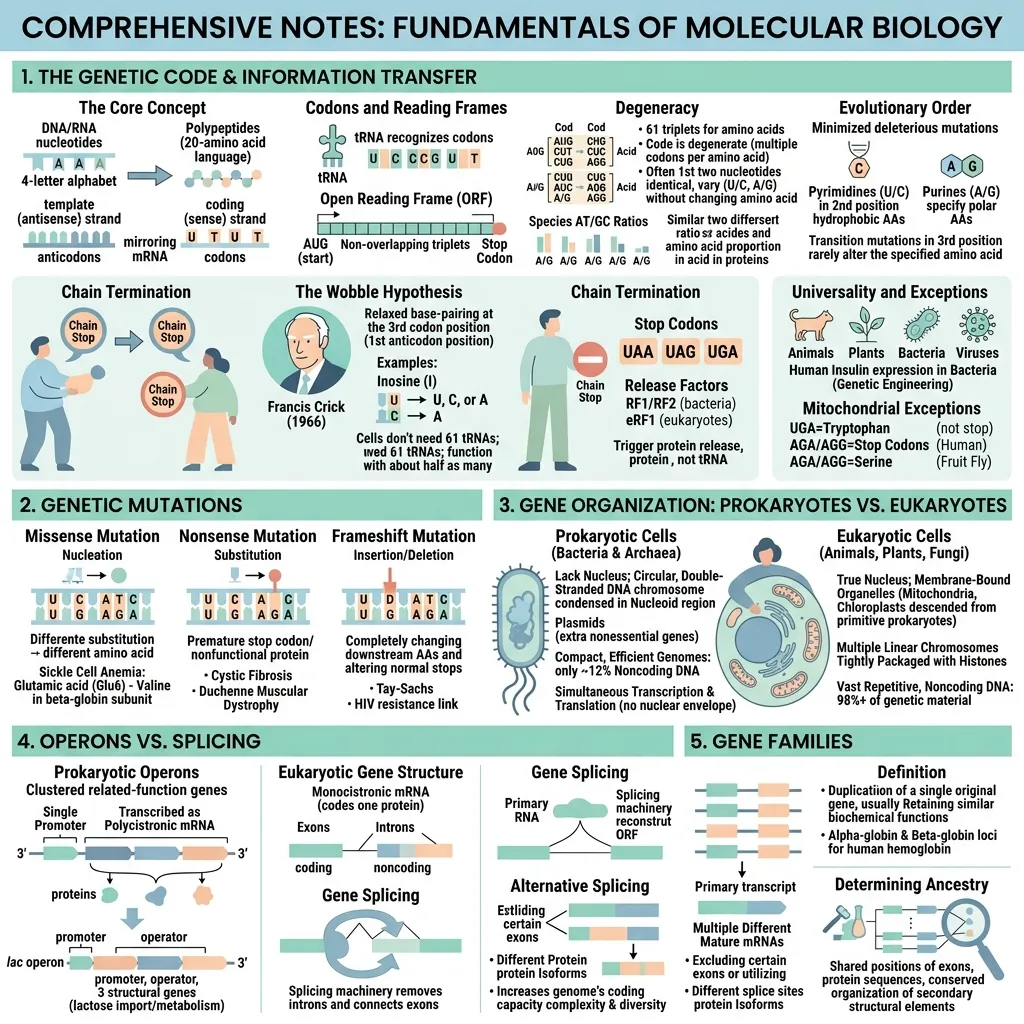
The first output is a one-page visual summary of the chapter. It is worth a minute of your attention before you generate anything else, partly because it is the fastest way to see whether the upload actually captured the material you cared about, and partly because knowing the shape of a topic makes the cards much easier to answer later. The PDF to infographic page covers that half of the workflow in more detail.
Step 3: generate the deck
The deck comes from the same source as the visual, so you are not preparing the material twice. Decks cap at 30 cards. That limit is a feature: a deck you can finish in one sitting is a deck you will come back to, and a 200-card monster from one chapter is a deck you will abandon by Thursday.
Step 4: review, regenerate, append
Read every card before you start drilling. Two things go wrong, and they have different fixes.
If the deck misread the chapter, aimed at the wrong level, or asked about the introduction instead of the substance, regenerate it and you get a fresh set. If the deck is good but incomplete, if it covered the first two sections properly and skipped the one your lecturer spent forty minutes on, append more cards instead. Appending keeps what already works and adds to it.
Then practice in the flip view: the question shows, you answer from memory, you flip. Answer out loud or on paper. Flipping because a card looks familiar is re-reading with extra clicks, and re-reading is what you came here to stop doing.
Step 5: export it somewhere you will actually use it
Four formats, each with a genuine use. Pick by where you revise, not by which sounds most thorough.
CSV, for Anki, Excel, and Sheets
The CSV has two columns in front, back order, one card per row. That is exactly the layout Anki expects, so importing is quick: in Anki choose File then Import, pick the CSV, set the field separator to comma, choose the deck and note type you want (Basic is fine), and map field 1 to Front and field 2 to Back. Check the preview row before you confirm, since a mismatched mapping produces a deck of answers asking questions. The same file opens straight into Excel or Google Sheets if you would rather edit the wording in bulk, and you can re-import the edited version.
PDF, through the browser print dialog
The PDF is produced by your browser's own print dialog rather than a server-side renderer, which means it works on any machine with no extra software and no waiting. Choose Save as PDF as the destination and you get a file; choose a real printer and you get paper. Handy for revision away from a screen, and for teachers who want a handout.
TXT, for pasting elsewhere
Plain text, no formatting to fight with. This is the one to use when the cards need to end up somewhere else: a Notion page, a shared doc, a message to a study group, or another flashcard app with its own paste based import.
Interactive HTML page, for offline and shared machines
The last option is a single self-contained page. Everything it needs is inside the file, so it opens in any browser with no internet connection and no login. Put it on a USB stick or a shared drive and it runs on a classroom machine, a locked-down school laptop, or a train with no signal. Nobody has to create an account to use the deck you made.
Putting it together
Upload the chapter, read the visual once, generate the deck, fix it with a regenerate or an append, then export to wherever you revise. The whole loop is a few minutes, which matters more than it sounds: the reason most people do not use flashcards is not that they doubt the method, it is that building the deck costs an evening they do not have.
If you want the details of the deck side, including what the cards look like and how the practice view works, the AI flashcard generator page covers it. Otherwise, open the chapter you are avoiding and start there.