Most tools that claim to convert PDFs into infographics don't actually do the work. They hand you a blank template and ask you to retype the content. We tested seven that genuinely automate the job. Here's what we found.
What to look for
The market splits in two: template tools where you type the content, and AI tools that read the PDF and generate the visual end-to-end. This guide focuses on the second camp. We evaluated each tool on five criteria:
- End-to-end automation — does it read the PDF, or do you have to retype?
- Output quality — shareable, or does it look like a draft?
- Speed — 30 seconds or 10 minutes?
- File size and page limits — can it handle a 30-page report?
- Price — what does it cost if you use it weekly?
1. VisualNote AI — best for sketchnote-style summaries
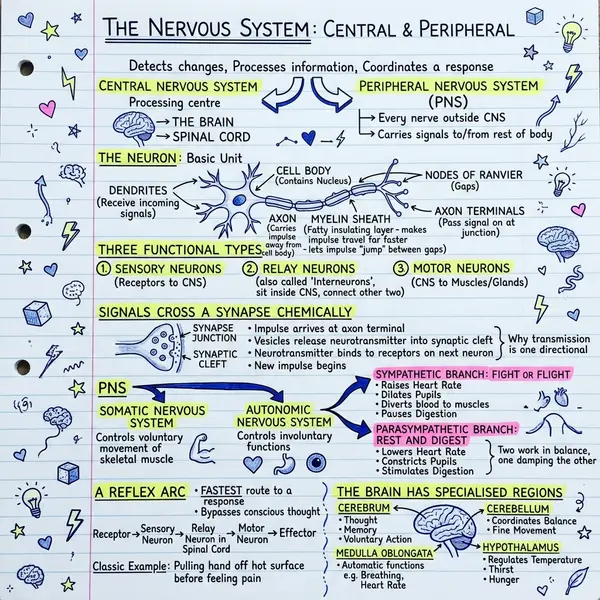
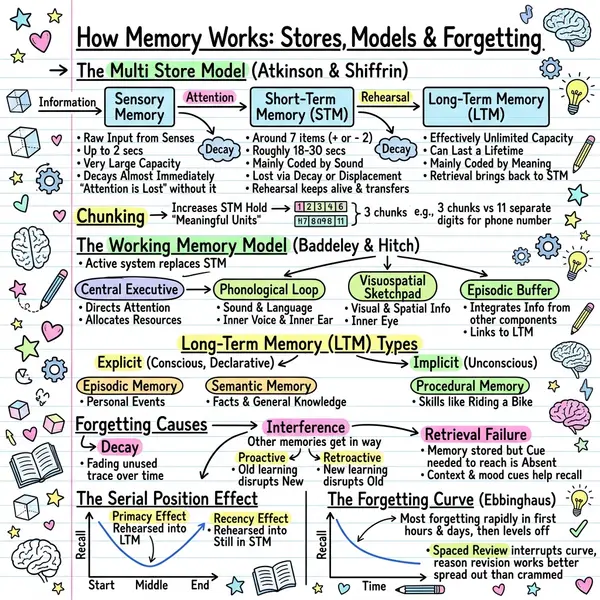
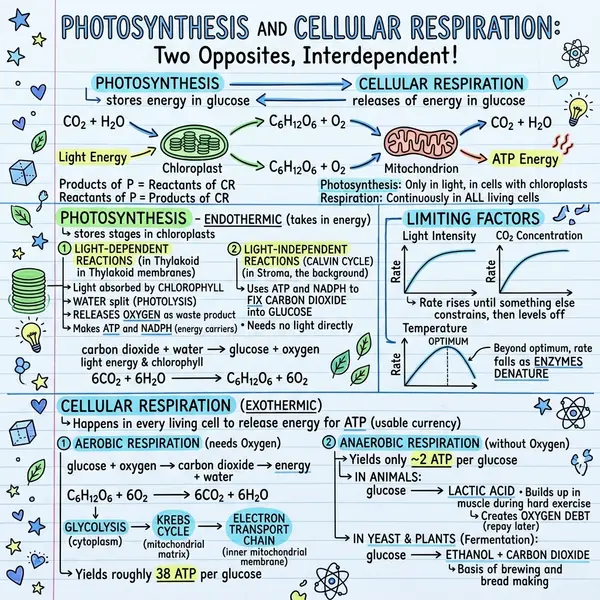
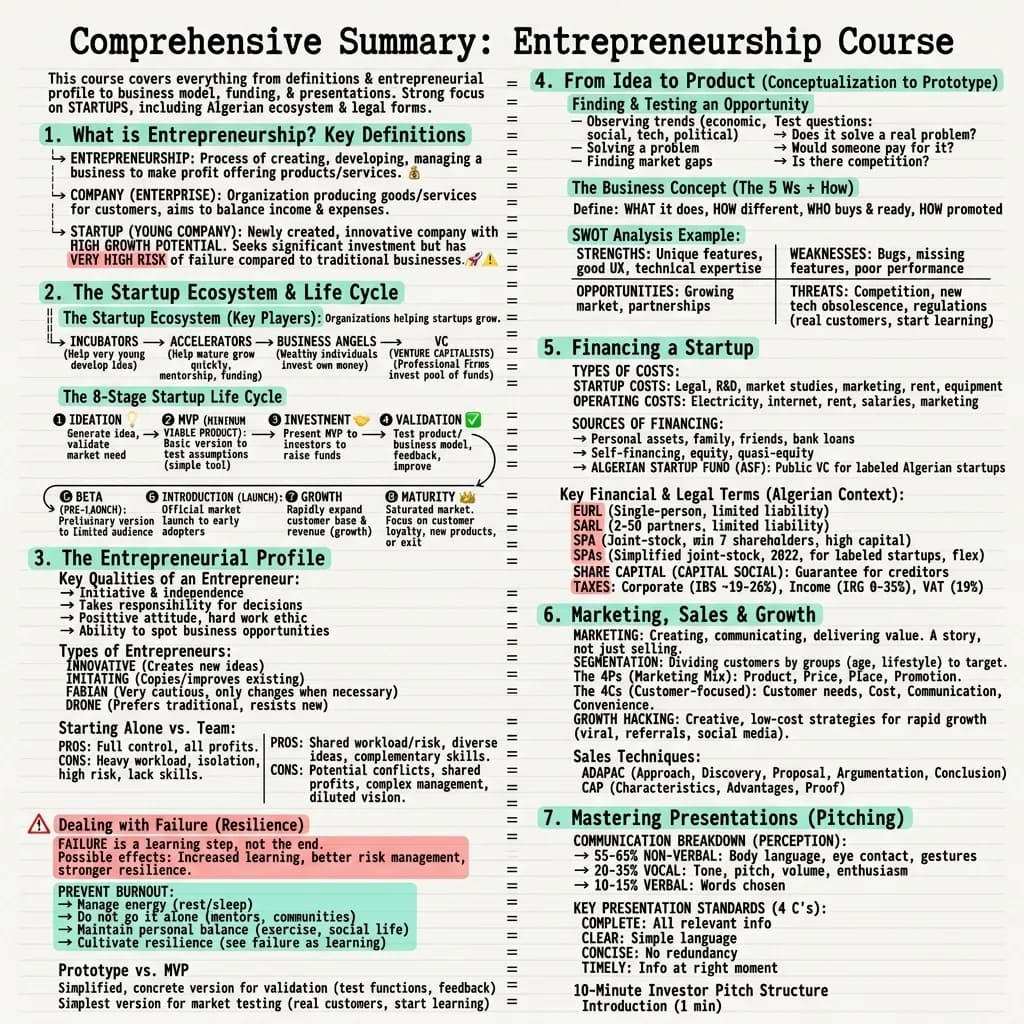
Built specifically for the PDF-to-sketchnote use case. Upload a PDF up to 10MB, choose a style (Classic, Timeline, Blueprint, Kanban), and get a hand-drawn 1024×1024 PNG in 20–40 seconds. The output looks like a designer made it, not a template engine. Free tier supports text input; PDF upload is on the $13.99/month Plus plan.
Best for: students, teachers, writers, and anyone who values a personal hand-drawn aesthetic. Try it on the PDF to infographic page.
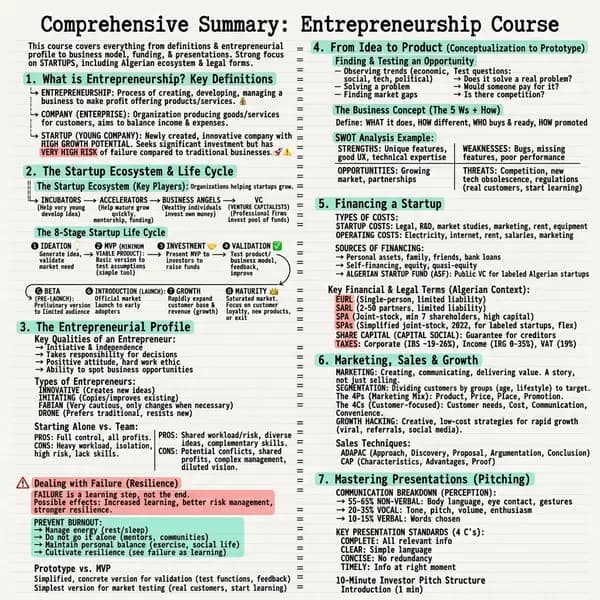
2. Canva Magic Design — best for branded vector infographics
Canva's Magic Design can ingest text and generate infographic templates you then customise. It doesn't parse PDFs natively — you typically copy-paste — and the output is template-based vector design rather than a true visual summary. Excellent for brand-consistent corporate infographics; less ideal for fast personal summaries.
3. Piktochart AI — best for data-heavy reports
Piktochart's AI assistant takes long-form input and generates multi-section layouts with charts and stats. The strength: data. If your PDF is a quarterly report or a dataset summary, it handles the bar charts and KPI blocks well. The weakness: the output looks distinctly “made in Piktochart.”
4. Venngage AI Infographic Maker — best for marketing teams
Venngage focuses on marketing-ready infographics with strong template variety. The AI input is text-first and template-bound; expect meaningful editing after generation. Pricing is per seat and aimed at teams.
5. ChatGPT + DALL-E — best for one-offs
You can paste a PDF's extracted text into ChatGPT and ask DALL-E to generate an infographic. Output quality is inconsistent — sometimes brilliant, often unreadable, especially when text is involved. Good for experimenting; not reliable for repeat use.
Most “AI infographic generators” are template engines with a chat box bolted on. The real question is whether the tool reads your PDF, or just asks you to retype it.
6. Napkin AI — best for quick concept diagrams
Napkin generates diagrams and visual blocks from text. It's less of a single-page infographic generator and more of an inline-visual generator for documents. Useful when you want multiple smaller visuals rather than one summary page.
7. Adobe Express AI — best inside the Adobe ecosystem
Adobe Express bundles a generative AI infographic flow with Adobe's asset library. If you already pay for Creative Cloud, it's worth a look. PDF parsing is limited and the workflow assumes you'll do post-editing.
Frequently asked questions
Is there a free PDF to infographic converter?
Yes. VisualNote AI's free tier supports text input. Direct PDF upload is a Plus feature on most tools.
What's the typical PDF size limit?
10MB is standard. For larger documents, split the PDF into sections or summarise key chapters first.
Do they handle scanned image-only PDFs?
Most struggle. Run OCR first (Adobe Acrobat, ABBYY) to convert the PDF to text-selectable, then upload.
Which gives the best-looking output?
For hand-drawn sketchnote feel: VisualNote AI. For polished vector graphics: Canva or Venngage.
Want a step-by-step? How to convert a PDF to an infographic.