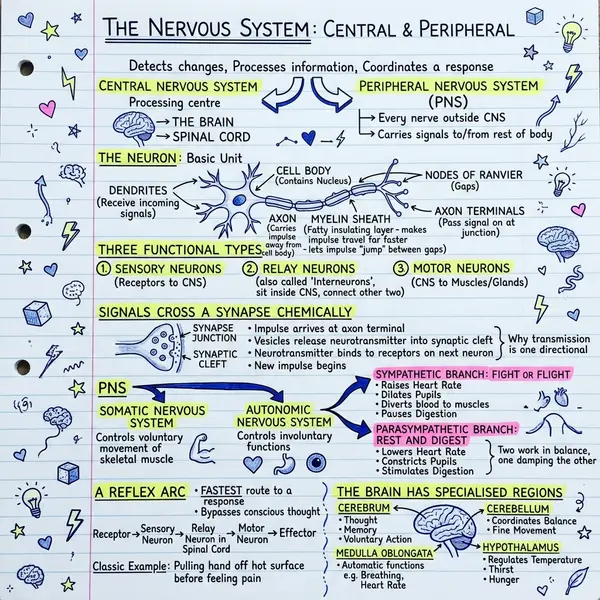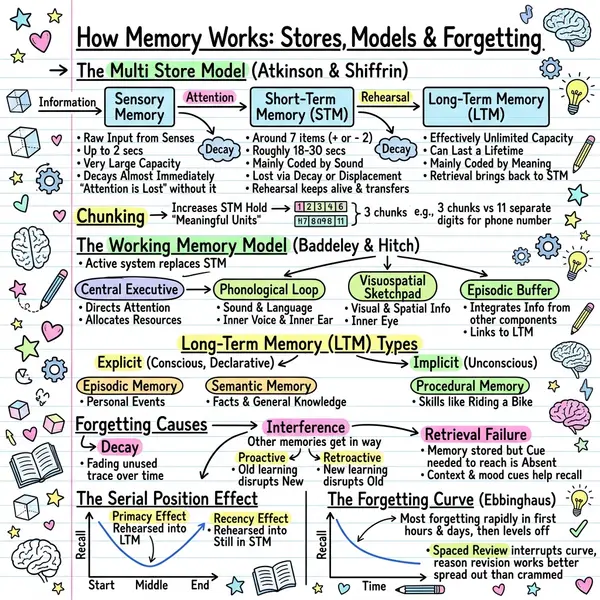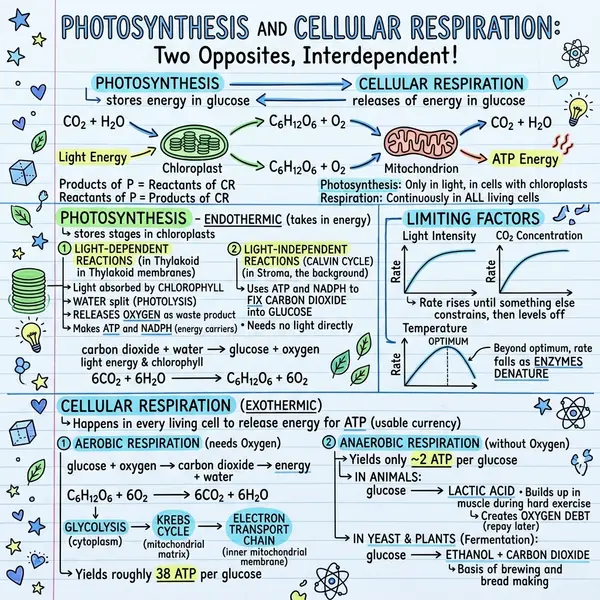
A great sketchnote fits one idea on one page. But real source material — a research paper, a course chapter, a meeting brief — rarely fits one page. Cram it into a single image and you get a wall of tiny text. That's the problem Split solves: instead of one overloaded visual, you get a clean series, each part covering a distinct section, read in order.
Step 1 — Choose how many parts
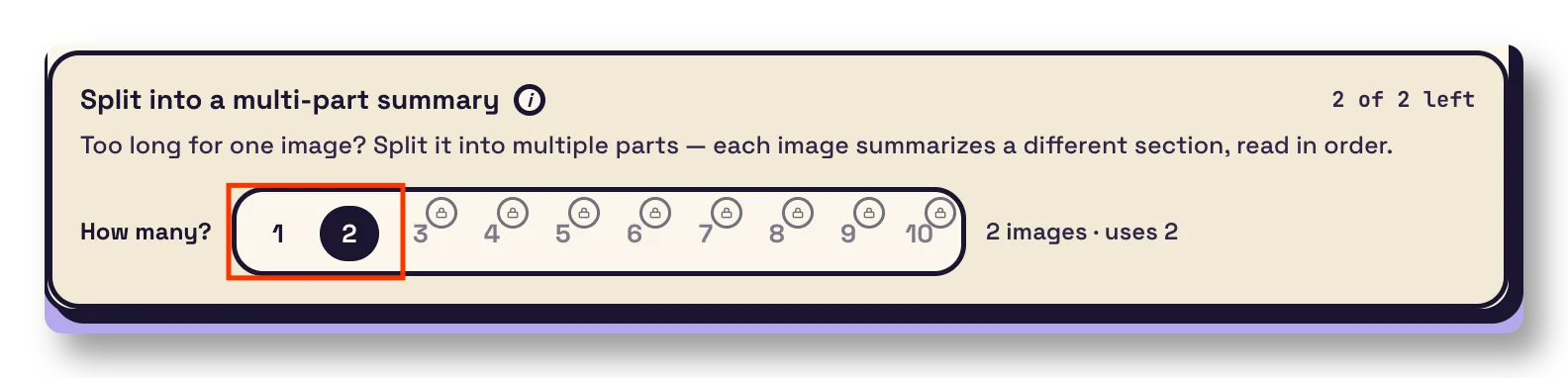
In the generator, the “Split into a multi-part summary” control lets you pick how many sections to break your source into. Two for a short article, up to ten for a long document — each part will become its own image.
Step 2 — The AI splits and structures the text
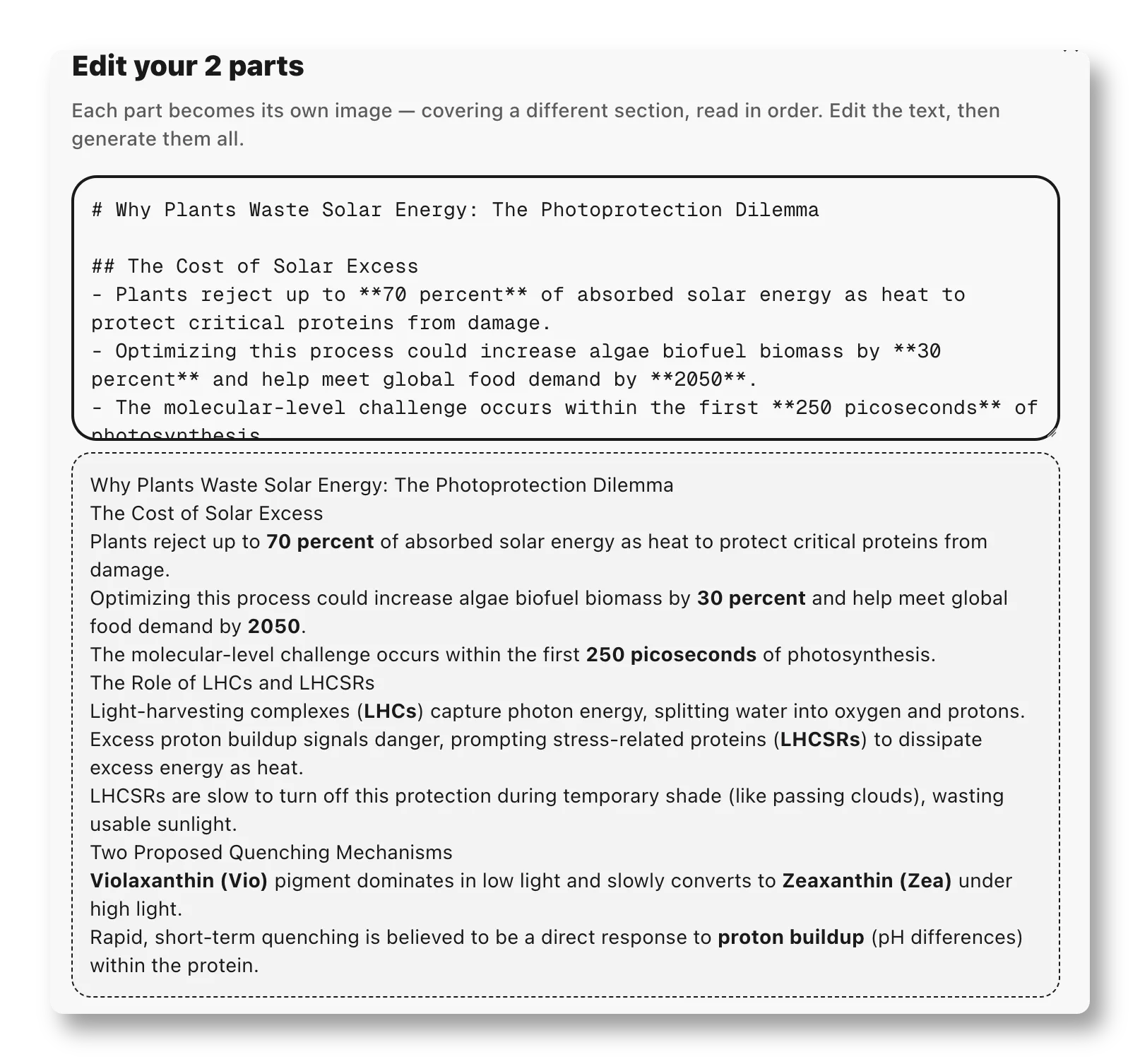
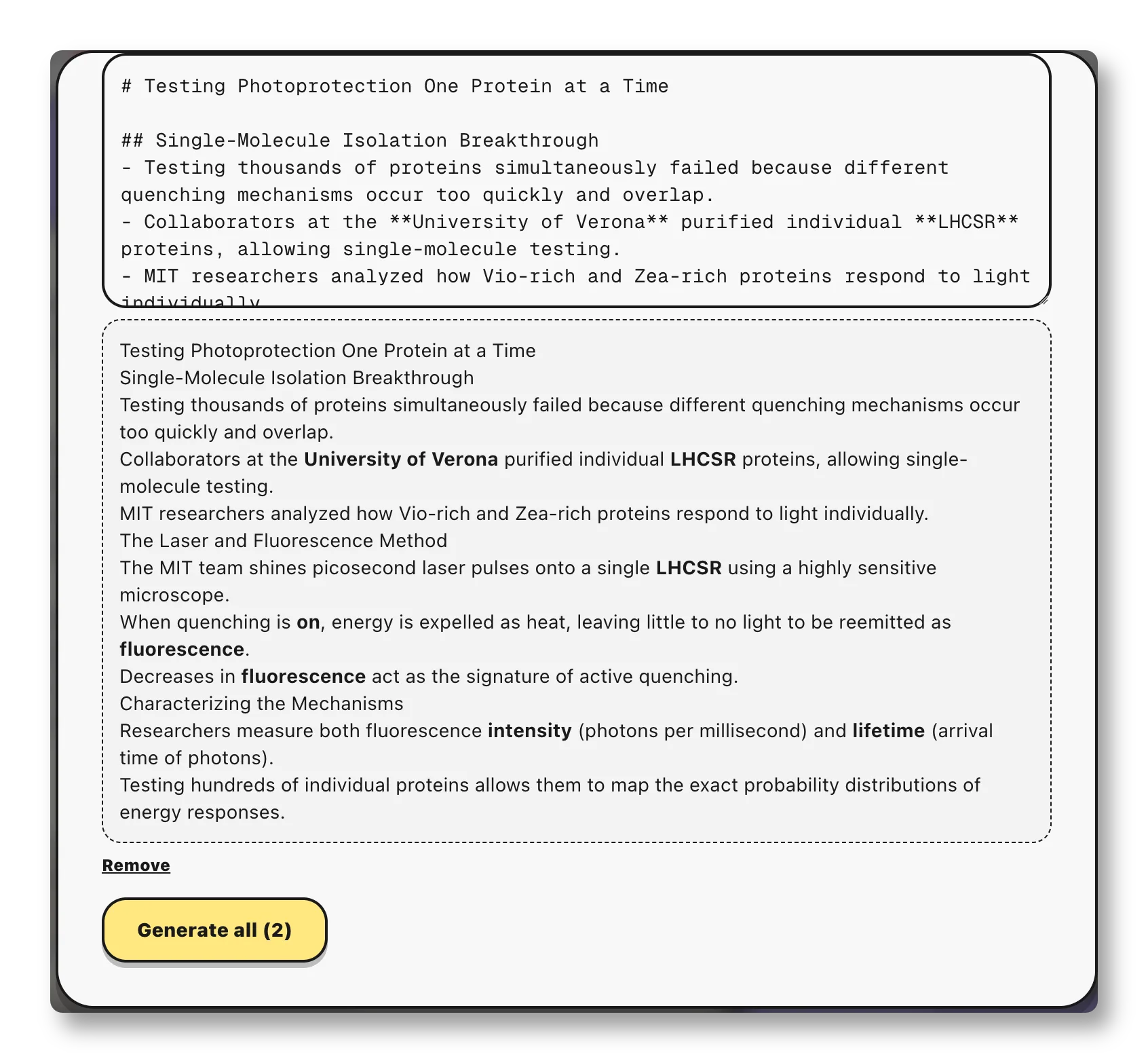
Paste your text or upload a PDF and Split reads the whole thing, then divides it into self-contained sections — in reading order, with no gaps and no overlap. Each section comes back as clean, formatted text: headline, sub-themes, and supporting points. You can edit any part before generating, and there's a Simple or Detailed depth toggle depending on how much explanation you want.
Step 3 — Each part becomes its own visual
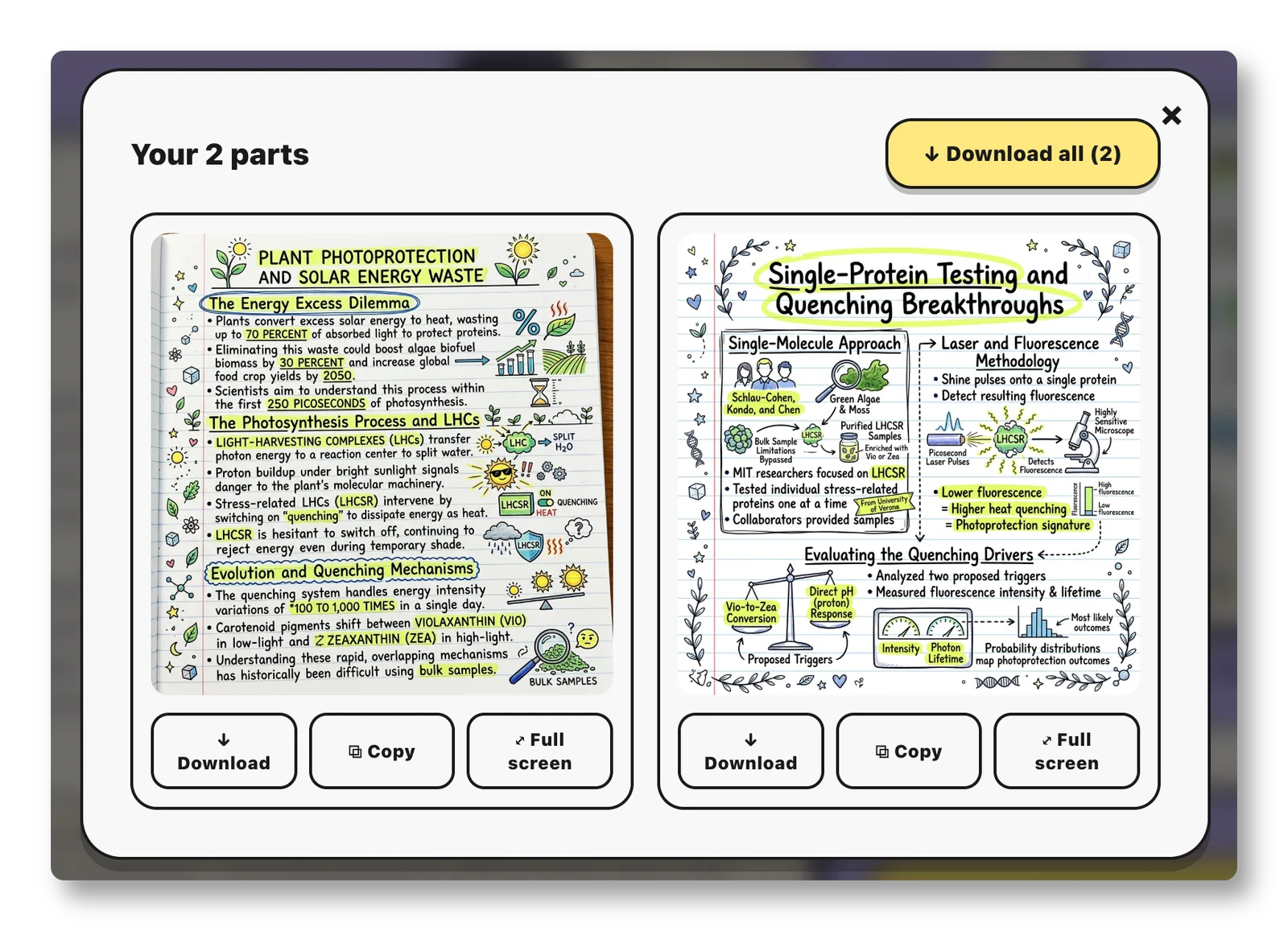
Hit generate and every section is rendered into its own sketchnote in your chosen style. The result is a set of connected visuals you can download, copy, or view full screen — individually or all at once. A whole document, summarized at a glance.
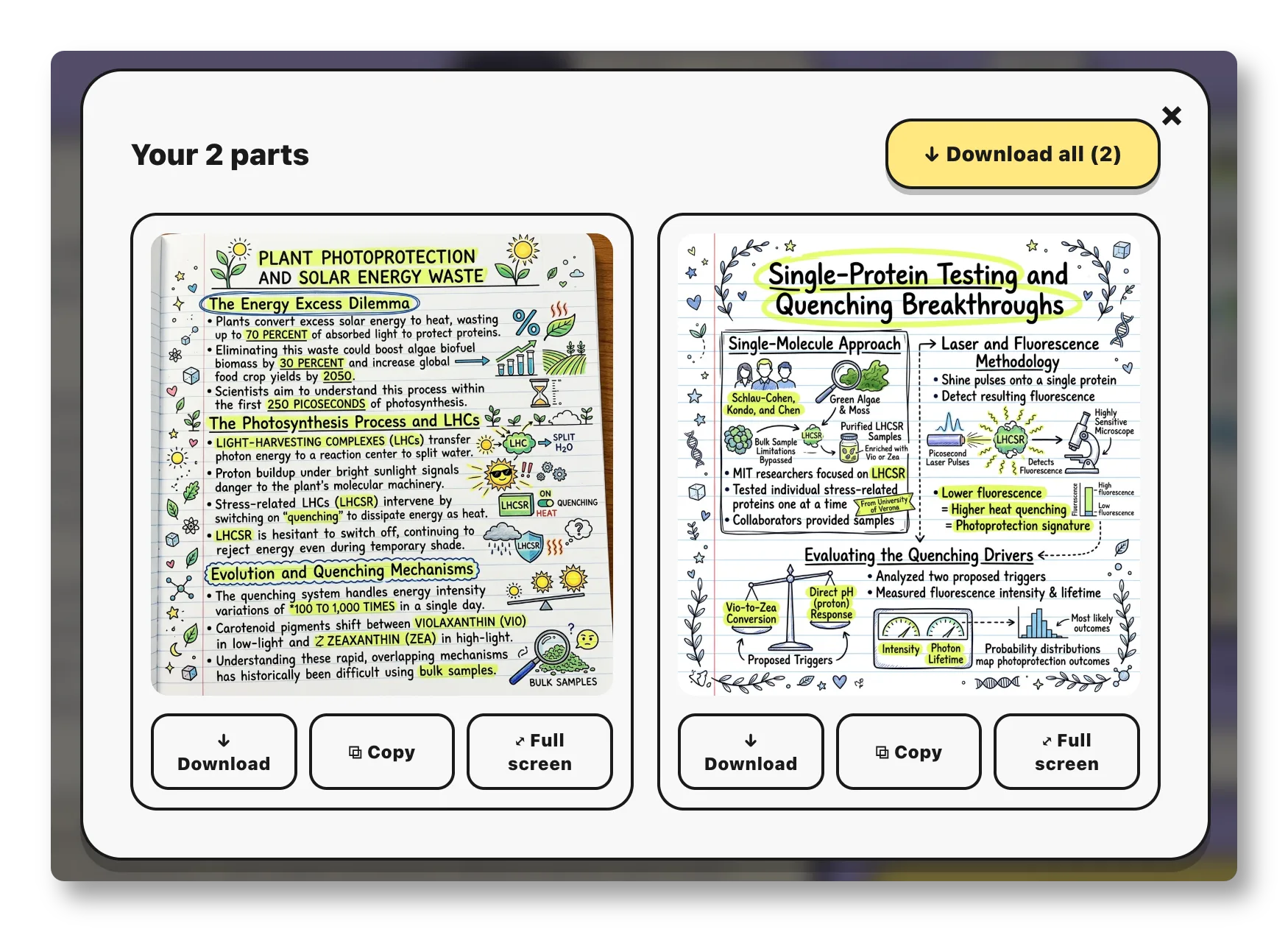
One long source in, a connected series of visuals out — read in order, like the chapters of a visual summary.
How to use it
Add your content
Paste long text, upload a PDF, or summarize a link as usual.
Open the split control
Under the source, pick how many parts to divide it into (2–10).
Review the sections
The AI returns formatted, editable sections. Tweak any text, switch between Simple and Detailed depth.
Generate all
Each section renders into its own sketchnote in your selected style — concurrently.
Save the set
Download each part, copy to clipboard, view full screen, or use Download all.
Frequently asked questions
How many parts can I create?
Between 2 and 10, depending on your plan. Each part becomes its own image.
Can I edit the text before generating?
Yes — every section comes back as editable text with a live preview. Adjust anything before rendering.
What's the difference between Simple and Detailed?
Simple keeps each section concise; Detailed adds more explanation and supporting detail. It's a single toggle.
Does it work with PDFs and links?
Yes — paste text, upload a PDF, or summarize a link, then split any of them.
Ready to try it? Open the generator and look for the “Split into a multi-part summary” control under your source.