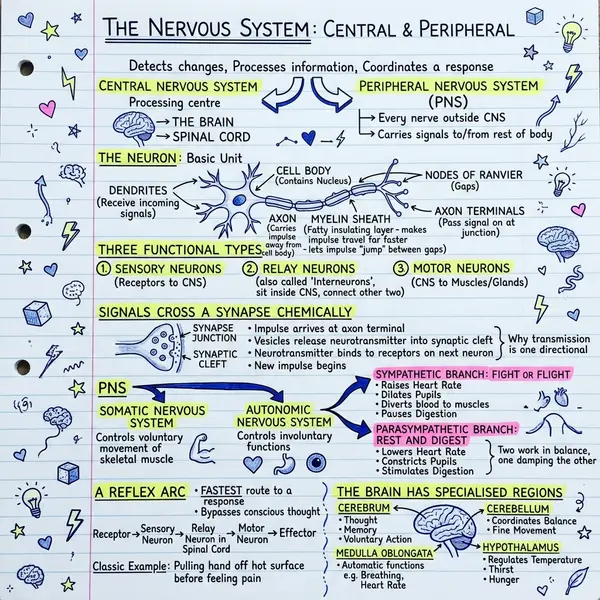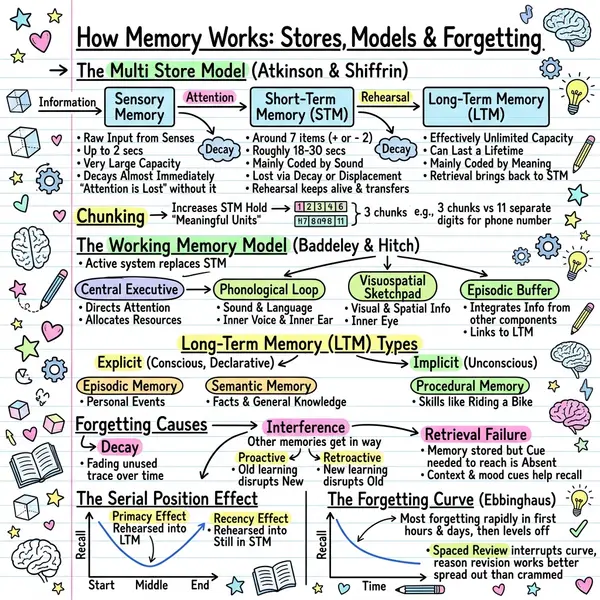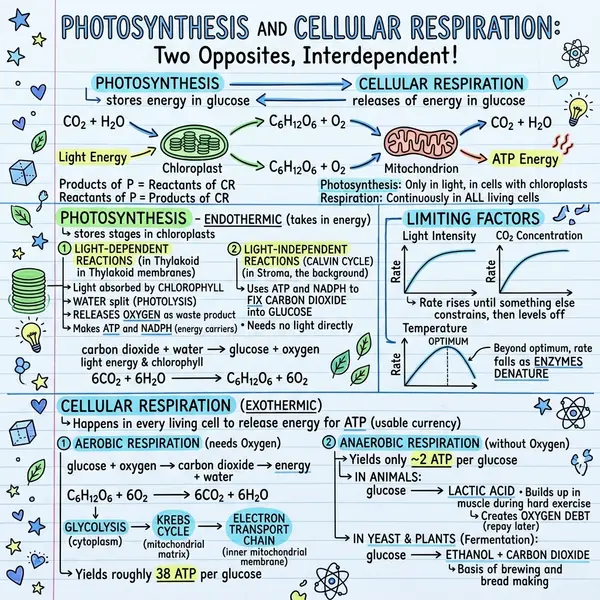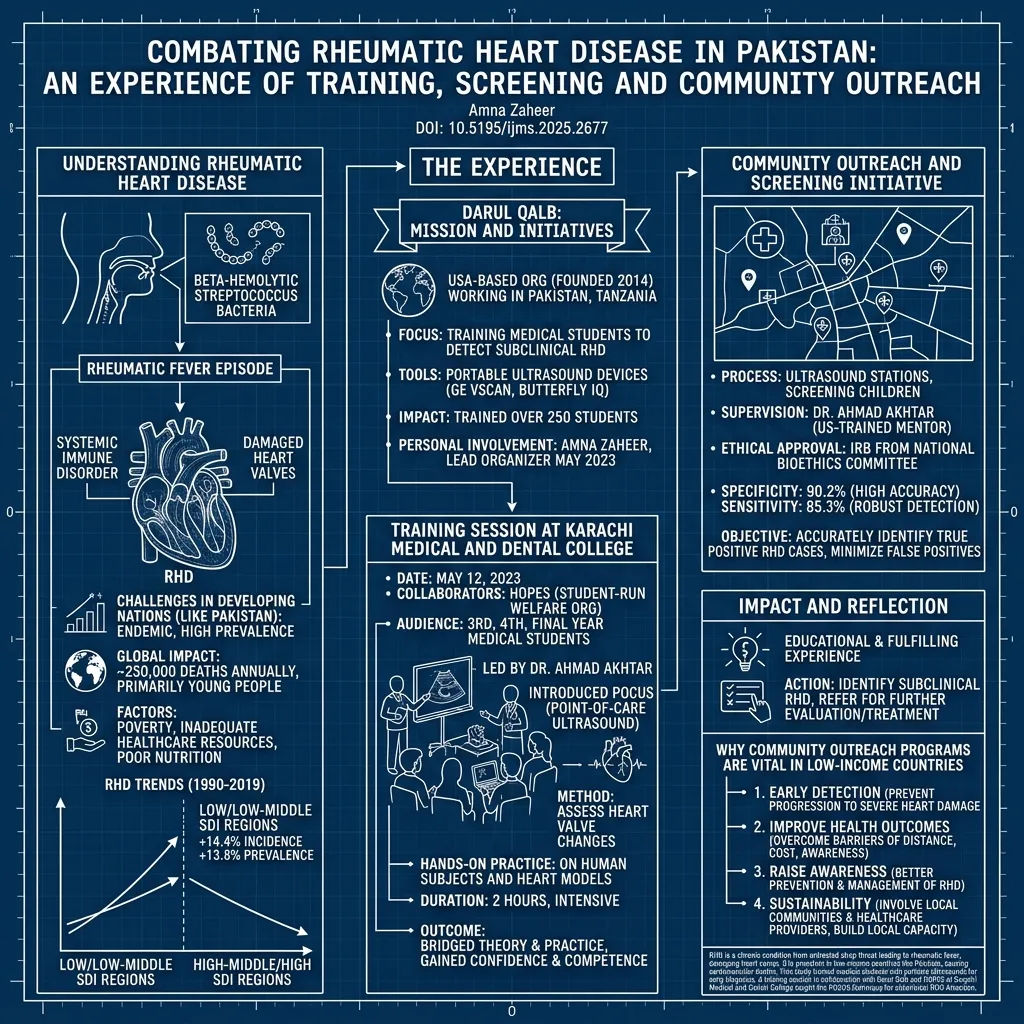
A great PDF visual summary captures three things: the headline message, the supporting structure (sections, steps, or categories), and a few quotable specifics. It fits on a single page, reads in 30 seconds, and stands alone — someone who never opens the PDF should still get the point.
What a good visual summary looks like
Bad visual summaries either stuff every detail in (cluttered) or strip too much out (no information left). The job of the AI is to find the middle: enough density to be useful, enough whitespace to be scannable.
Documents that summarise well
- Academic research papers — abstracts, methods, and findings map cleanly onto a visual
- Industry reports and whitepapers — exec summaries become posterised takeaways
- Textbook chapters — concepts and worked examples translate well
- Annual reports and financial filings — KPIs and narrative compress to one page
- Long-form articles and essays — argument structure becomes the visual structure
Documents that struggle: scanned image-only PDFs (run OCR first), legal contracts (need clause-level fidelity), and books over 50 pages (split into chapters first).
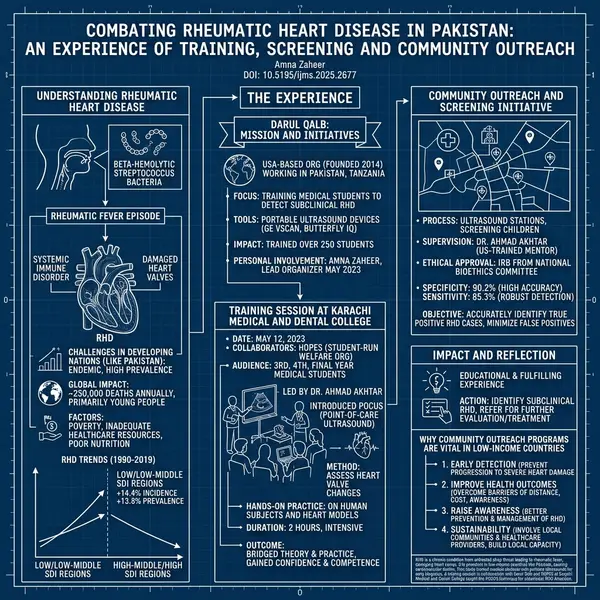
Step-by-step
Open PDF to infographic
PDF upload requires Plus ($13.99/month). Free users can paste extracted text into notes-to-visual instead.
Upload (up to 10MB)
Drag in or browse. The AI parses with OpenAI — understands both text and embedded figures.
Pick the right style
Classic for general. Timeline for sequence. Blueprint for technical. Kanban for comparisons.
Generate
20–40 seconds. Extracts structure, picks headline points, renders a 1024×1024 PNG.
Iterate or download
Happy? Download. Want a different angle? Regenerate or switch styles. Two regenerations usually surface the strongest composition.
When the headline isn't obvious in the result, your source PDF probably buries it. Add a TL;DR at the top of the file before uploading.
Where to share the visual summary
The visual summary format outperforms text excerpts on most platforms: LinkedIn (saves and shares), Slack and Discord (people actually click), email newsletters (higher CTRs than linked PDFs), Notion or Confluence pages (becomes the doc's landing card).
For internal use, embed the visual at the top of the original document so anyone opening it gets the gist before diving in. For external sharing, post the visual with a one-sentence caption and link to the full PDF underneath.
Frequently asked questions
What's the maximum PDF size?
10MB on the Plus plan. For larger files, split into sections or summarise the key chapters first.
Does it work with scanned PDFs?
Lower extraction accuracy. Run OCR first (Adobe Acrobat or free tools like ocr.space), then upload.
Can I edit the result?
Output is a flat PNG. For text edits, drop into Figma or Canva.
Privacy — is the PDF stored?
No. Documents are processed through serverless endpoints and not stored permanently.