Everyone writes meeting notes with good intentions. In practice, they end up as walls of bullet points that are too detailed to skim and too incomplete to be comprehensive. People who weren't in the meeting won't read them. People who were won't go back to them.
The problem with text-only meeting notes
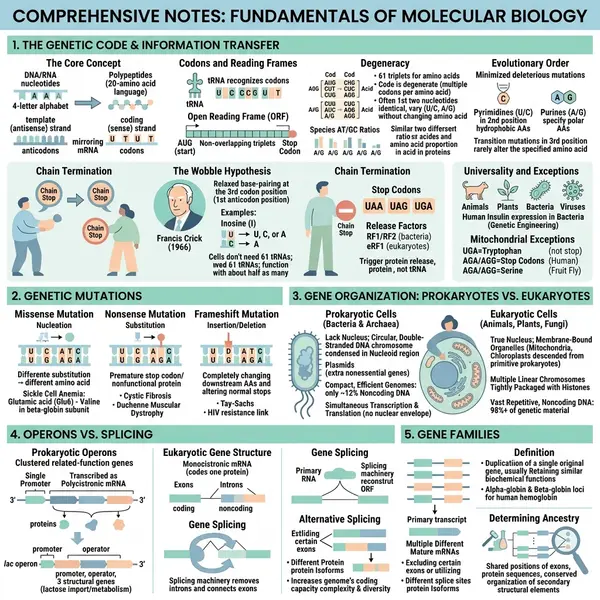
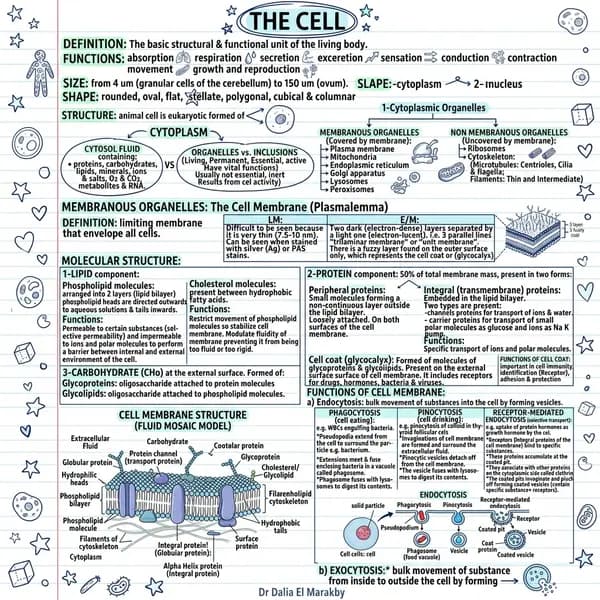
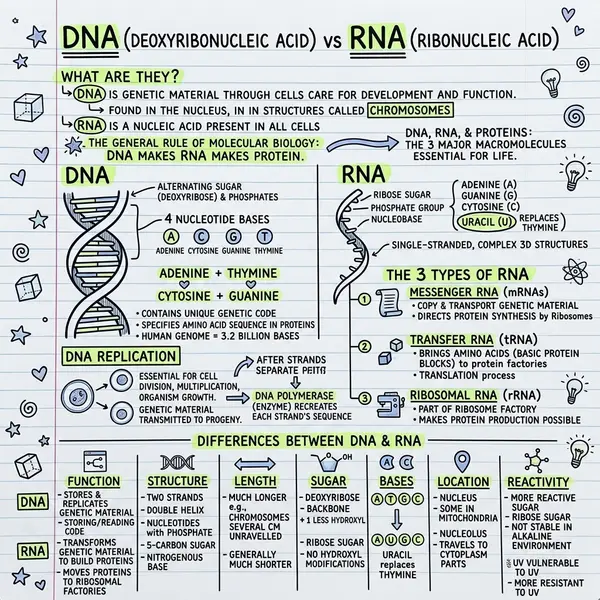
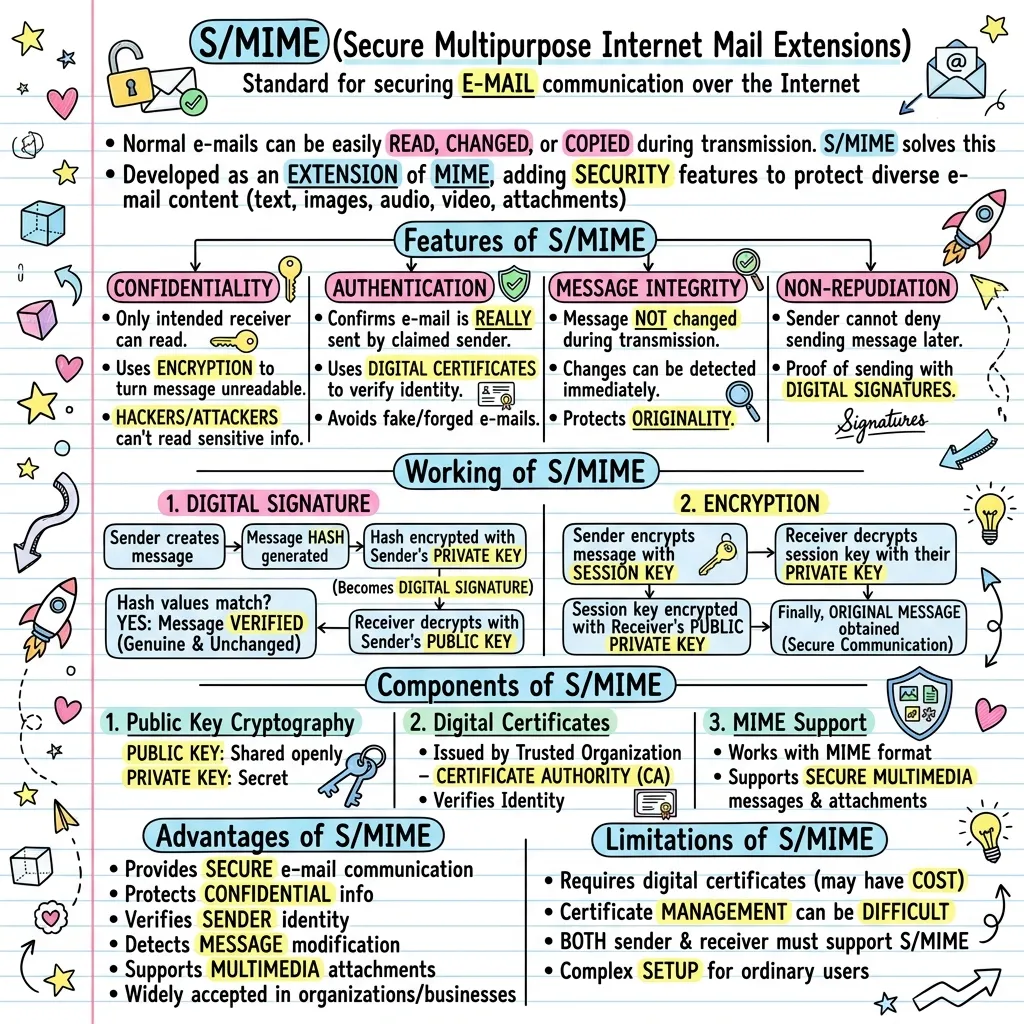
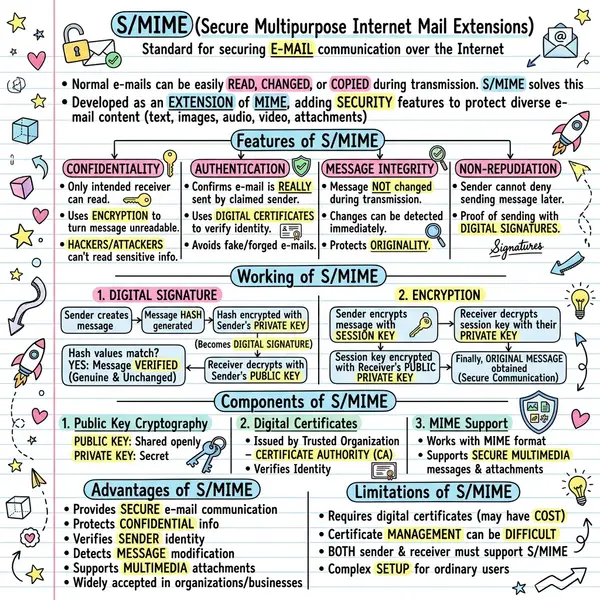
Visual meeting summaries solve this. A well-structured one-page visual showing decisions made, action items, key discussion points, and next steps is scannable in 30 seconds. People read it. They share it. It becomes a reference document that gets used.
What a good visual meeting summary captures
- Context — what the meeting was about and why it mattered
- Decisions made — what was agreed upon
- Action items — who is doing what by when
- Open questions — what still needs to be resolved
If your notes contain those four elements, VisualNote AI can turn them into a structured visual that presents all of it clearly.
How to do it — step by step
Write structured bullet points
Before the meeting ends, capture decisions, actions, and open questions as clear bullets. Group by category. The more structured the input, the better the output.
Paste into the generator
Open VisualNote AI. Include the meeting name, date, attendees, and your structured bullets.
Pick Kanban or Classic
Kanban naturally creates columns — decisions, actions, questions. Classic is better if the meeting covered a single topic in depth.
Generate + share
Download the PNG. Drop in the Slack channel, embed in the notes doc, or send to non-attendees. Under 2 minutes total.
Specificity in your notes translates to specificity in the visual. “@sarah: review feedback by Friday” reads back as “@sarah: review feedback by Friday.”
Where to share visual meeting summaries
- Slack / Teams — drop directly in the meeting channel
- Notion / Confluence — embed at the top of the meeting notes page
- Email — attach for stakeholders not in the meeting
- Linear / Jira — attach to the relevant project or epic
- LinkedIn — share publicly if the meeting discussed a public initiative
Frequently asked questions
What if my notes aren't structured?
Spend 30 seconds adding section headings (Decisions, Actions, Questions). The structure compounds — better input, better visual.
Best style for a recurring stand-up?
Kanban. The columns naturally map to updates, blockers, asks.
Can the AI infer action items from transcripts?
Yes, but it works better if you label them explicitly. Raw transcripts often miss the decision moment.
Free plan limits?
Free text-to-visual generations every month. Enough to test the workflow on a couple of meetings.